> ## Documentation Index
> Fetch the complete documentation index at: https://docs.actionmodel.com/llms.txt
> Use this file to discover all available pages before exploring further.
# Agent Calendar & Schedules
> Manage your AI workforce like real employees. Schedule automations, coordinate multiple agents, and run workflows 24/7 with intelligent calendar management.
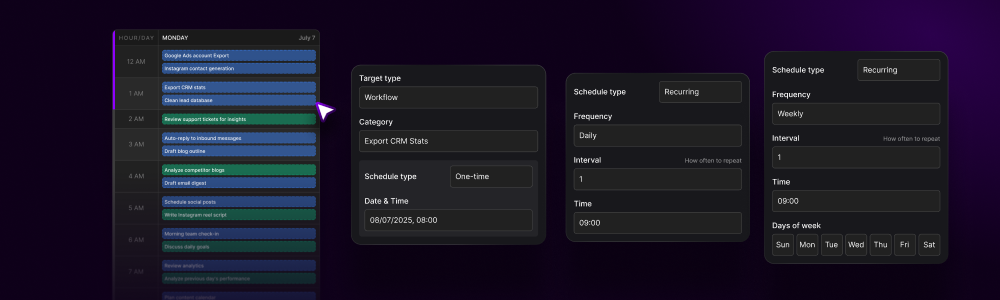
## Your Agents Have Calendars, Just Like Your Staff
In the traditional workplace, employees have calendars, schedules, and shifts. Your AI agents are no different—except they work **24/7 without breaks**, never call in sick, and execute with perfect consistency.
The Agent Calendar system transforms chaotic automation into **organized, predictable, scalable operations**.
**The Paradigm Shift**: Stop thinking of automations as one-off scripts. Start thinking of them as scheduled work performed by digital employees who need proper time management.
Need something urgent? Jump in and redirect your agent to new priorities at any moment. It will reorganize its calendar automatically.
Every completed task is recorded as a reviewable video. Click any past session in your calendar to watch exactly what your agent did, step by step.
## Calendar Overview
## Core Scheduling Concepts
Schedule workflows to run once at a specific date and time
Set up daily, weekly, or monthly recurring schedules
Run workflows continuously for specified durations
Launch workflows based on events or conditions
Orchestrate multiple agents working in sequence
AI-optimized scheduling based on workload patterns
## Calendar Views
### Visual Schedule Management
**See the Big Picture**
The monthly calendar displays all scheduled workflows as color-coded blocks:
* **Blue**: Regular automated tasks
* **Green**: Successfully completed
* **Yellow**: Currently running
* **Red**: Failed or requires attention
* **Purple**: High-priority workflows
**Features:**
* Drag-and-drop rescheduling
* Click to view workflow details
* Bulk selection for mass updates
* Export to standard calendar formats
**Detailed Weekly Planning**
Perfect for managing intensive automation periods:
* Hour-by-hour workflow visibility
* Resource allocation overview
* Conflict detection and resolution
* Time zone management
* Weekend automation planning
**Optimization Tools:**
* Load balancing suggestions
* Peak time identification
* Resource utilization metrics
**Granular Daily Control**
Minute-by-minute execution tracking:
* Real-time status updates
* Execution timeline
* Performance metrics
* Error logs and debugging
* Manual intervention points
**Live Features:**
* Stream agent screens
* Pause/resume controls
* Priority adjustments
* Quick rescheduling
**Data-Driven Management**
Comprehensive schedule table with:
* Workflow name and description
* Next run time
* Frequency/recurrence pattern
* Success rate
* Average duration
* Resource consumption
* Quick action buttons
**Filtering & Sorting:**
* By agent
* By status
* By department
* By priority
* By success rate
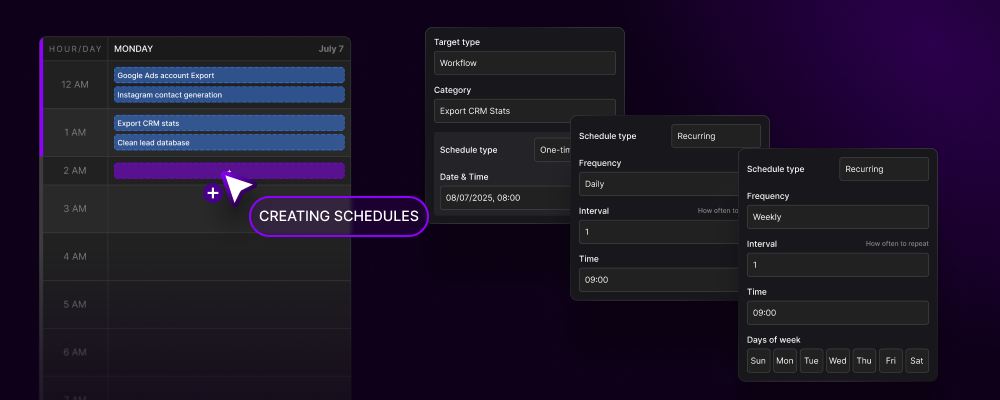
## Creating Schedules
### Schedule Configuration Interface
Choose what to schedule:
* **Individual Workflow**: Single task automation
* **Workflow Chain**: Multi-step process
* **Agent Shift**: Entire agent working period
* **Department Batch**: Multiple agents coordinated
Set when it should run:
* Specific date and time
* Time zone selection
* Execution window tolerance
* Deadline constraints
* Daily/Weekly/Monthly
* Custom intervals (every X hours/days)
* Business days only option
* Holiday calendar integration
Specify execution parameters:
* **Estimated Duration**: How long the workflow typically takes
* **Maximum Runtime**: Force stop after X minutes/hours
* **Continuation Rules**: What happens if not completed
* **Resource Allocation**: CPU/Memory limits
Pass dynamic data to workflows:
```json theme={null}
{
"date_range": "last_7_days",
"target_metrics": ["sales", "leads", "conversions"],
"output_format": "pdf",
"recipients": ["team@company.com"],
"priority": "high"
}
```
Activate your schedule:
* Review configuration
* Check for conflicts
* Enable/disable toggle
* Immediate or scheduled start
* Notification preferences
## Advanced Scheduling Features
### Intelligent Automation Orchestration
**Chain Workflows with Dependencies**
Create complex automation sequences where workflows depend on others:
* **Sequential Execution**: Workflow B starts only after A completes
* **Parallel Processing**: Multiple workflows run simultaneously
* **Conditional Branching**: Different paths based on outcomes
* **Error Cascading**: Downstream handling of upstream failures
**Example Chain:**
1. Daily Data Collection (6 AM)
2. → Data Processing (After #1 completes)
3. → Report Generation (After #2 completes)
4. → Email Distribution (After #3 completes)
**Smart Resource Allocation**
The scheduler intelligently manages system resources:
* **Load Balancing**: Distributes workflows across available agents
* **Peak Avoidance**: Schedules heavy tasks during off-peak hours
* **Priority Queuing**: High-priority tasks get resources first
* **Elastic Scaling**: Spins up cloud agents during busy periods
**Optimization Metrics:**
* CPU utilization targets
* Memory allocation limits
* Network bandwidth management
* Cost optimization rules
**Automatic Conflict Detection**
Prevents scheduling issues before they happen:
* **Overlap Detection**: Warns when workflows conflict
* **Resource Conflicts**: Identifies resource bottlenecks
* **Data Lock Issues**: Prevents simultaneous file access
* **API Rate Limits**: Manages third-party service limits
**Resolution Strategies:**
* Automatic rescheduling
* Priority-based resolution
* Manual override options
* Conflict notifications
**Global Schedule Coordination**
Manage automations across time zones:
* **Multi-timezone Support**: Schedule in any timezone
* **DST Handling**: Automatic daylight saving adjustments
* **Global Team Coordination**: Sync with international offices
* **Follow-the-sun Operations**: 24/7 coverage across regions
**Smart Features:**
* Local business hours detection
* Holiday calendar integration
* Regional compliance windows
* Cross-timezone reporting
## Schedule Analytics
### Performance Metrics Dashboard
**Data-Driven Optimization**: Track every aspect of your scheduled automations to identify bottlenecks, optimize timing, and maximize efficiency.
**Track Performance Over Time**
| Metric | Description | Target |
| ----------------------- | ------------------------------------ | ------------- |
| **Success Rate** | Percentage of successful completions | >95% |
| **Average Duration** | Mean execution time | Baseline -10% |
| **On-Time Rate** | Schedules starting within window | >99% |
| **Error Frequency** | Failures per 100 executions | \<2 |
| **Resource Efficiency** | CPU/Memory utilization | 60-80% |
**AI-Powered Recommendations**
The system analyzes patterns and suggests:
* **Optimal Execution Times**: When workflows run fastest
* **Resource Allocation**: Better agent distribution
* **Failure Patterns**: Common failure causes and fixes
* **Bottleneck Identification**: Workflow steps that slow execution
* **Cost Optimization**: Cheaper execution windows
**Learn from Past Performance**
* **Trend Analysis**: Performance over weeks/months
* **Seasonal Patterns**: Busy periods and slow times
* **Failure Correlation**: What causes failures
* **Duration Variations**: Why some runs take longer
* **Success Factors**: What makes workflows succeed
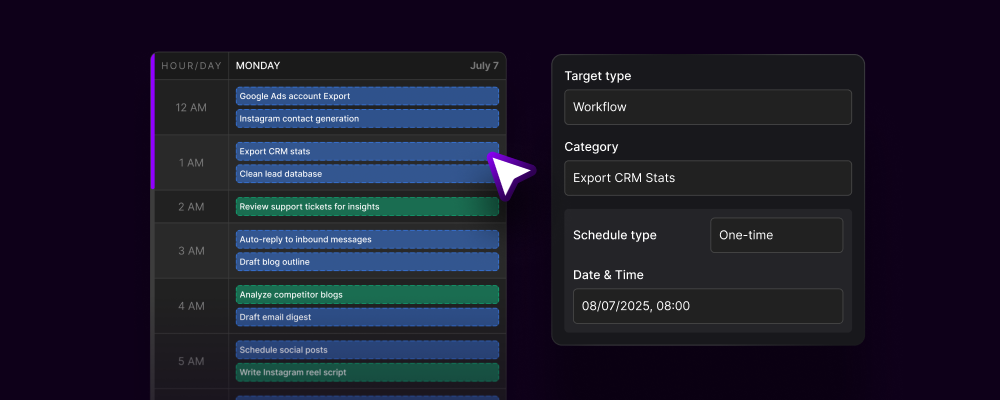
## Execution History
### Complete Audit Trail
Every scheduled execution is meticulously logged:
* Start/end timestamps
* Duration
* Status (success/failure/partial)
* Error messages
* Resource consumption
* Variables used
* Screen recording of execution
* Step-by-step action log
* Decision points
* Error screenshots
* Performance timeline
### History Interface Features
* **Search & Filter**: Find specific executions quickly
* **Bulk Operations**: Retry, cancel, or reschedule multiple items
* **Export Options**: CSV, JSON, or PDF reports
* **Comparison Tools**: Compare different execution runs
* **Debugging Mode**: Step through failed executions
## Real-World Scheduling Scenarios
### Example 1: E-Commerce Operations
**Daily Automation Calendar:**
```
6:00 AM - Inventory sync across all platforms
7:00 AM - Competitor price monitoring
8:00 AM - Update pricing based on competition
9:00 AM - Process overnight orders
10:00 AM - Customer service email responses
12:00 PM - Social media content posting
2:00 PM - Inventory reorder check
4:00 PM - Sales report generation
6:00 PM - Next-day promotion setup
11:00 PM - Daily backup and cleanup
```
* **Time Saved**: 8 hours daily
* **Error Reduction**: 95% fewer mistakes
* **Response Time**: Customer queries answered in minutes
* **Revenue Impact**: 15% increase from optimized pricing
### Example 2: Marketing Agency
**Client Campaign Automation:**
**Weekly:**
* Monday 9 AM: Collect analytics from all platforms
* Tuesday 10 AM: Generate client reports
* Wednesday 2 PM: Social media scheduling
* Thursday 11 AM: Email campaign deployment
* Friday 3 PM: Weekly performance summary
**Daily:**
* 8 AM & 4 PM: Social media engagement
* 12 PM: Content calendar updates
* 5 PM: Lead capture and CRM updates
* **Clients Managed**: 50+ with 3 employees
* **Consistency**: Never miss a posting schedule
* **Scalability**: Add clients without adding staff
* **Client Satisfaction**: 98% retention rate
## Schedule Management Best Practices
Begin with basic daily/weekly schedules before complex orchestrations:
1. Single workflow, daily execution
2. Add time-based conditions
3. Introduce dependencies
4. Scale to multiple agents
5. Implement full orchestration
Always include buffer time:
* 5-10 minutes between dependent workflows
* 15-30 minutes for resource-intensive tasks
* Account for API rate limits
* Consider peak usage times
* Plan for failure recovery
Continuously improve your schedules:
* Review weekly performance metrics
* Adjust timing based on success rates
* Optimize resource allocation
* Update duration estimates
* Refine dependency chains
Maintain clear documentation:
* Purpose of each scheduled workflow
* Dependencies and relationships
* Expected outcomes
* Troubleshooting guides
* Contact persons for issues
## Notifications & Alerts
### Stay Informed About Your Automations
* Completion confirmations
* Performance summaries
* Record-breaking executions
* Milestone achievements
* Immediate error notifications
* Failure reasons
* Suggested fixes
* Escalation to team members
* Upcoming schedule changes
* Maintenance windows
* Resource availability
* Schedule conflicts
* Weekly performance reports
* Optimization suggestions
* Cost saving opportunities
* Efficiency improvements
## The Future of Work Scheduling
**Revolutionary Reality**: While human employees work 40 hours a week, your AI agents work 168 hours. The Agent Calendar system ensures every one of those hours is optimized, productive, and profitable.
### Coming Soon
* **AI Schedule Optimization**: ML-powered scheduling that learns and improves
* **Cross-Platform Sync**: Integrate with Google Calendar, Outlook, etc.
* **Mobile Management**: Manage schedules from your phone
* **Voice Commands**: "Hey Actionist, reschedule the report to 3 PM"
* **Predictive Scheduling**: AI suggests optimal schedules before you ask
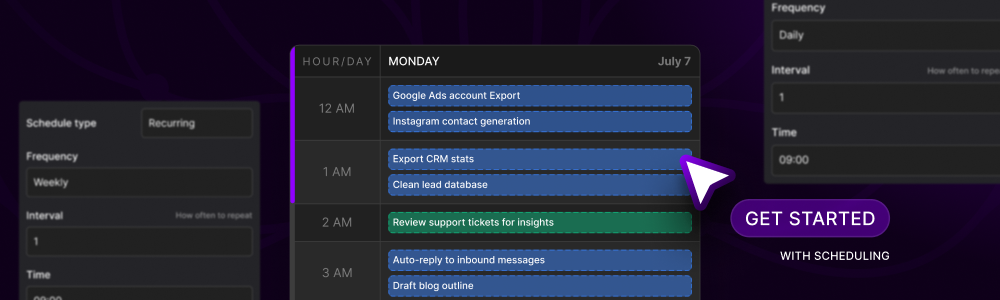
## Get Started with Scheduling
Open the Agent Calendar from your Actionist dashboard
Start with a simple daily workflow
Watch your first automated execution
Adjust based on performance metrics
Add more workflows and agents as needed
See scheduling in action
Learn workflow optimization
Join the community
***
**Agent Calendar & Schedules: Where time becomes automated, schedules become scalable, and your digital workforce never sleeps.**
**24/7 productivity. Zero overtime. Infinite scale.**
 ## Your Agents Have Calendars, Just Like Your Staff
In the traditional workplace, employees have calendars, schedules, and shifts. Your AI agents are no different—except they work **24/7 without breaks**, never call in sick, and execute with perfect consistency.
The Agent Calendar system transforms chaotic automation into **organized, predictable, scalable operations**.
## Your Agents Have Calendars, Just Like Your Staff
In the traditional workplace, employees have calendars, schedules, and shifts. Your AI agents are no different—except they work **24/7 without breaks**, never call in sick, and execute with perfect consistency.
The Agent Calendar system transforms chaotic automation into **organized, predictable, scalable operations**.
 ## Creating Schedules
### Schedule Configuration Interface
## Creating Schedules
### Schedule Configuration Interface
 ## Execution History
### Complete Audit Trail
Every scheduled execution is meticulously logged:
## Execution History
### Complete Audit Trail
Every scheduled execution is meticulously logged:
 ## Get Started with Scheduling