> ## Documentation Index
> Fetch the complete documentation index at: https://docs.actionmodel.com/llms.txt
> Use this file to discover all available pages before exploring further.
# Triggers
> Launch automations automatically based on any event. From emails to webhooks, file changes to time schedules, make your AI workforce truly autonomous with intelligent triggers.
## Automation That Never Sleeps
Triggers transform your agents from on-demand workers into **proactive digital employees** that spring into action the moment something happens. No more manual starts, no more missed opportunities—just intelligent automation responding to your world in real-time.
**The Autonomy Revolution**: While others require you to manually start every automation, Action Model agents wake up and work based on ANY trigger—emails, messages, API calls, file changes, or custom events—creating truly autonomous operations.
## Core Trigger Types
Schedule workflows at specific times or intervals
React to system events, file changes, or application actions
Respond to emails, messages, or notifications
Listen for API calls and external system events
Monitor databases, spreadsheets, or APIs for updates
Intelligent triggers based on content analysis
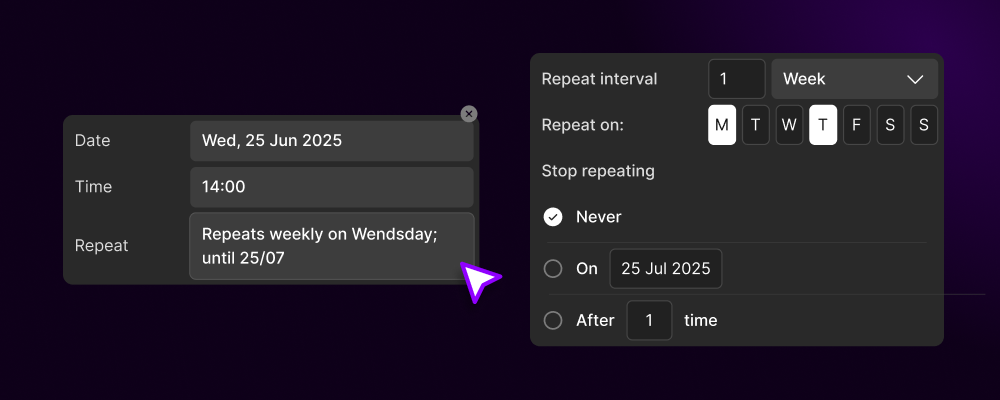 ## Time-Based Triggers
### Schedule Your Digital Workforce
**Basic Time Triggers:**
Run workflows at specific times each day:
* **Morning Reports**: 9 AM daily summary
* **Lunch Break Tasks**: 12 PM automation
* **End of Day**: 5 PM cleanup and backup
* **Overnight Processing**: 2 AM heavy tasks
**Configuration:**
```yaml theme={null}
trigger:
type: daily
time: "09:00"
timezone: "America/New_York"
skip_weekends: true
skip_holidays: true
```
Execute on specific days and times:
* **Monday Morning**: Week planning workflows
* **Wednesday Check-ins**: Mid-week reports
* **Friday Summaries**: Weekly wrap-ups
* **Weekend Maintenance**: Saturday cleanups
**Configuration:**
```yaml theme={null}
trigger:
type: weekly
days: ["Monday", "Wednesday", "Friday"]
time: "10:00"
timezone: "UTC"
```
Run on specific dates each month:
* **Month Start**: First day processing
* **Mid-Month**: 15th day reviews
* **Month End**: Last day reports
* **Quarterly**: Every 3 months
**Configuration:**
```yaml theme={null}
trigger:
type: monthly
day: 1 # or "last", "15", etc.
time: "08:00"
months: ["January", "April", "July", "October"]
```
**Complex Time Patterns:**
Use cron syntax for precise control:
```yaml theme={null}
# Every 15 minutes during business hours
trigger:
type: cron
expression: "*/15 9-17 * * MON-FRI"
# First Monday of every month at 10 AM
trigger:
type: cron
expression: "0 10 1-7 * MON"
# Every hour between 8 AM and 8 PM
trigger:
type: cron
expression: "0 8-20 * * *"
```
**Common Patterns:**
* `*/5 * * * *` - Every 5 minutes
* `0 */2 * * *` - Every 2 hours
* `0 9-17 * * 1-5` - Every hour, 9-5, weekdays
* `0 0 * * 0` - Weekly on Sunday midnight
Run repeatedly with specific gaps:
```yaml theme={null}
trigger:
type: interval
every: 30 # minutes
between:
start: "08:00"
end: "18:00"
conditions:
- business_hours_only: true
- max_runs_per_day: 20
```
**Use Cases:**
* Check for new data every 10 minutes
* Sync systems every hour
* Monitor prices every 30 minutes
* Process queue every 5 minutes
AI-optimized timing based on patterns:
**Adaptive Scheduling:**
* Learn optimal execution times
* Avoid system peak loads
* Respect rate limits automatically
* Adjust for time zones dynamically
**Example:**
```yaml theme={null}
trigger:
type: smart
goal: "maximize_success_rate"
constraints:
- avoid_peak_hours: true
- respect_api_limits: true
- optimize_for_speed: true
```
## Time-Based Triggers
### Schedule Your Digital Workforce
**Basic Time Triggers:**
Run workflows at specific times each day:
* **Morning Reports**: 9 AM daily summary
* **Lunch Break Tasks**: 12 PM automation
* **End of Day**: 5 PM cleanup and backup
* **Overnight Processing**: 2 AM heavy tasks
**Configuration:**
```yaml theme={null}
trigger:
type: daily
time: "09:00"
timezone: "America/New_York"
skip_weekends: true
skip_holidays: true
```
Execute on specific days and times:
* **Monday Morning**: Week planning workflows
* **Wednesday Check-ins**: Mid-week reports
* **Friday Summaries**: Weekly wrap-ups
* **Weekend Maintenance**: Saturday cleanups
**Configuration:**
```yaml theme={null}
trigger:
type: weekly
days: ["Monday", "Wednesday", "Friday"]
time: "10:00"
timezone: "UTC"
```
Run on specific dates each month:
* **Month Start**: First day processing
* **Mid-Month**: 15th day reviews
* **Month End**: Last day reports
* **Quarterly**: Every 3 months
**Configuration:**
```yaml theme={null}
trigger:
type: monthly
day: 1 # or "last", "15", etc.
time: "08:00"
months: ["January", "April", "July", "October"]
```
**Complex Time Patterns:**
Use cron syntax for precise control:
```yaml theme={null}
# Every 15 minutes during business hours
trigger:
type: cron
expression: "*/15 9-17 * * MON-FRI"
# First Monday of every month at 10 AM
trigger:
type: cron
expression: "0 10 1-7 * MON"
# Every hour between 8 AM and 8 PM
trigger:
type: cron
expression: "0 8-20 * * *"
```
**Common Patterns:**
* `*/5 * * * *` - Every 5 minutes
* `0 */2 * * *` - Every 2 hours
* `0 9-17 * * 1-5` - Every hour, 9-5, weekdays
* `0 0 * * 0` - Weekly on Sunday midnight
Run repeatedly with specific gaps:
```yaml theme={null}
trigger:
type: interval
every: 30 # minutes
between:
start: "08:00"
end: "18:00"
conditions:
- business_hours_only: true
- max_runs_per_day: 20
```
**Use Cases:**
* Check for new data every 10 minutes
* Sync systems every hour
* Monitor prices every 30 minutes
* Process queue every 5 minutes
AI-optimized timing based on patterns:
**Adaptive Scheduling:**
* Learn optimal execution times
* Avoid system peak loads
* Respect rate limits automatically
* Adjust for time zones dynamically
**Example:**
```yaml theme={null}
trigger:
type: smart
goal: "maximize_success_rate"
constraints:
- avoid_peak_hours: true
- respect_api_limits: true
- optimize_for_speed: true
```
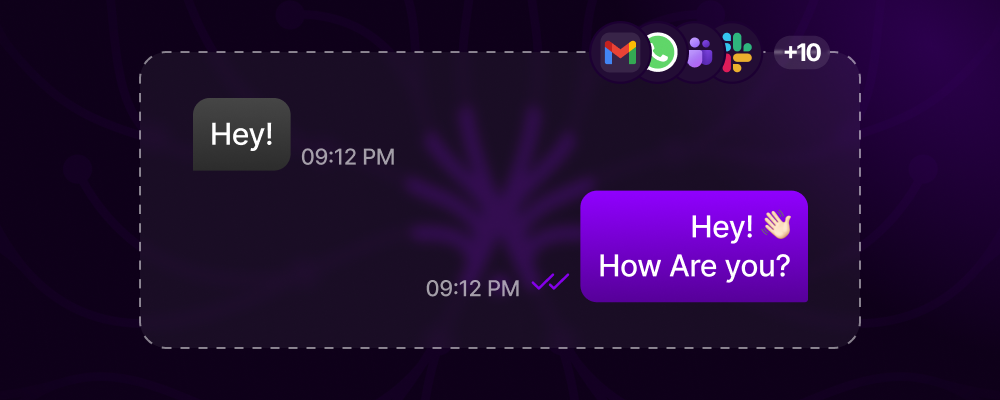 ## Communication Triggers
### React to Messages Instantly
**Monitor Inboxes and React:**
Set up email account access:
```yaml theme={null}
trigger:
type: email
provider: "gmail" # or outlook, yahoo, imap
account: "support@company.com"
folder: "INBOX"
```
Specify what emails trigger workflows:
```yaml theme={null}
conditions:
- subject_contains: ["urgent", "invoice", "order"]
- from_domain: "@client.com"
- has_attachment: true
- is_unread: true
```
Pass email content to workflow:
```yaml theme={null}
variables:
- email_subject: "${trigger.subject}"
- email_body: "${trigger.body}"
- sender: "${trigger.from}"
- attachments: "${trigger.attachments}"
```
Workflow automatically processes the email and takes action
**Common Email Triggers:**
* Invoice processing from specific vendors
* Customer support ticket creation
* Order confirmation handling
* Newsletter subscription management
* Out-of-office auto-responses
**Instant Message Monitoring:**
```yaml theme={null}
trigger:
type: slack
events:
- message_posted
- mention
- file_shared
- reaction_added
channels: ["#sales", "#support"]
keywords: ["help", "urgent", "@bot"]
```
**Use Cases:**
* Respond to mentions
* Process commands
* Archive important messages
* Generate summaries
```yaml theme={null}
trigger:
type: teams
events:
- new_message
- meeting_scheduled
- file_uploaded
teams: ["Marketing", "Sales"]
respond_to: ["questions", "requests"]
```
**Use Cases:**
* Meeting note automation
* Task creation from messages
* File organization
* Status updates
```yaml theme={null}
trigger:
type: whatsapp
events:
- message_received
- media_received
- status_update
from_contacts: true
business_hours_only: false
```
**Use Cases:**
* Customer inquiries
* Order updates
* Appointment reminders
* Support tickets
```yaml theme={null}
trigger:
type: sms
provider: "twilio"
events:
- incoming_message
keywords: ["STOP", "HELP", "ORDER"]
auto_response: true
```
**Use Cases:**
* Verification codes
* Alerts processing
* Quick responses
* Order tracking
## Communication Triggers
### React to Messages Instantly
**Monitor Inboxes and React:**
Set up email account access:
```yaml theme={null}
trigger:
type: email
provider: "gmail" # or outlook, yahoo, imap
account: "support@company.com"
folder: "INBOX"
```
Specify what emails trigger workflows:
```yaml theme={null}
conditions:
- subject_contains: ["urgent", "invoice", "order"]
- from_domain: "@client.com"
- has_attachment: true
- is_unread: true
```
Pass email content to workflow:
```yaml theme={null}
variables:
- email_subject: "${trigger.subject}"
- email_body: "${trigger.body}"
- sender: "${trigger.from}"
- attachments: "${trigger.attachments}"
```
Workflow automatically processes the email and takes action
**Common Email Triggers:**
* Invoice processing from specific vendors
* Customer support ticket creation
* Order confirmation handling
* Newsletter subscription management
* Out-of-office auto-responses
**Instant Message Monitoring:**
```yaml theme={null}
trigger:
type: slack
events:
- message_posted
- mention
- file_shared
- reaction_added
channels: ["#sales", "#support"]
keywords: ["help", "urgent", "@bot"]
```
**Use Cases:**
* Respond to mentions
* Process commands
* Archive important messages
* Generate summaries
```yaml theme={null}
trigger:
type: teams
events:
- new_message
- meeting_scheduled
- file_uploaded
teams: ["Marketing", "Sales"]
respond_to: ["questions", "requests"]
```
**Use Cases:**
* Meeting note automation
* Task creation from messages
* File organization
* Status updates
```yaml theme={null}
trigger:
type: whatsapp
events:
- message_received
- media_received
- status_update
from_contacts: true
business_hours_only: false
```
**Use Cases:**
* Customer inquiries
* Order updates
* Appointment reminders
* Support tickets
```yaml theme={null}
trigger:
type: sms
provider: "twilio"
events:
- incoming_message
keywords: ["STOP", "HELP", "ORDER"]
auto_response: true
```
**Use Cases:**
* Verification codes
* Alerts processing
* Quick responses
* Order tracking
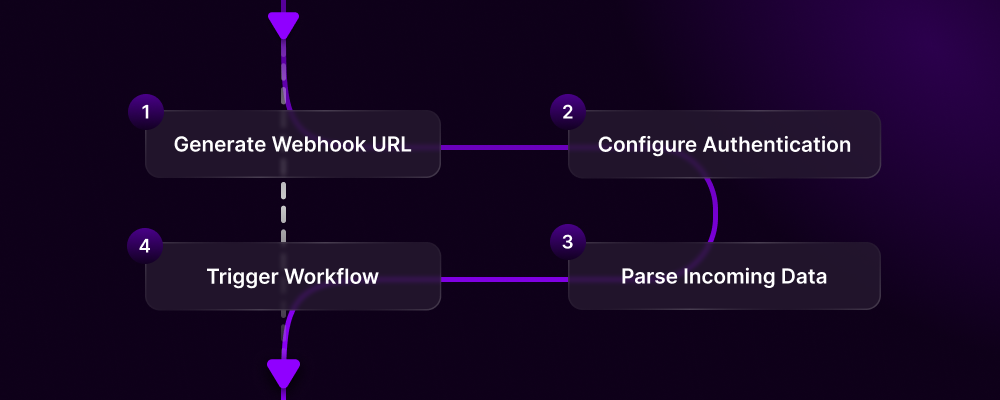 ## Webhook Triggers
### API-Driven Automation
**Universal Integration**: Webhooks allow ANY system to trigger your workflows, making Action Model the universal automation hub for your entire tech stack.
**Receive Data from Any System:**
Create unique endpoint for your workflow:
```
https://api.actionmodel.com/webhooks/wf_abc123xyz
```
Secure your webhook:
```yaml theme={null}
webhook:
auth_type: "bearer_token" # or basic_auth, api_key
token: "${WEBHOOK_SECRET}"
validate_signature: true
allowed_ips: ["192.168.1.0/24"]
```
Extract and validate payload:
```yaml theme={null}
data_mapping:
customer_id: "$.payload.customer.id"
order_amount: "$.payload.order.total"
items: "$.payload.order.items[*]"
timestamp: "$.headers.x-timestamp"
```
Process the data and execute automation
**Common Webhook Sources:**
* E-commerce platforms (Shopify, WooCommerce)
* Payment processors (Stripe, PayPal)
* CRM systems (Salesforce, HubSpot)
* Form builders (Typeform, Google Forms)
* GitHub/GitLab/Bitbucket
* Monitoring tools (Datadog, New Relic)
**Pre-configured Platform Triggers:**
```yaml theme={null}
trigger:
type: stripe_webhook
events:
- payment_intent.succeeded
- customer.subscription.created
- invoice.payment_failed
- charge.dispute.created
actions:
- update_crm
- send_receipt
- create_invoice
- alert_team
```
```yaml theme={null}
trigger:
type: github_webhook
repository: "company/project"
events:
- push
- pull_request
- issue_created
- release_published
branch_filter: ["main", "develop"]
```
```yaml theme={null}
trigger:
type: shopify_webhook
events:
- orders/create
- orders/fulfilled
- customers/create
- products/update
filters:
- total_price: ">100"
- fulfillment_status: "fulfilled"
```
```yaml theme={null}
trigger:
type: custom_webhook
endpoint: "/api/trigger/custom"
method: ["POST", "PUT"]
headers:
content_type: "application/json"
x_api_key: "${API_KEY}"
validation:
schema: "json_schema_v4"
required_fields: ["id", "action", "data"]
```
## Webhook Triggers
### API-Driven Automation
**Universal Integration**: Webhooks allow ANY system to trigger your workflows, making Action Model the universal automation hub for your entire tech stack.
**Receive Data from Any System:**
Create unique endpoint for your workflow:
```
https://api.actionmodel.com/webhooks/wf_abc123xyz
```
Secure your webhook:
```yaml theme={null}
webhook:
auth_type: "bearer_token" # or basic_auth, api_key
token: "${WEBHOOK_SECRET}"
validate_signature: true
allowed_ips: ["192.168.1.0/24"]
```
Extract and validate payload:
```yaml theme={null}
data_mapping:
customer_id: "$.payload.customer.id"
order_amount: "$.payload.order.total"
items: "$.payload.order.items[*]"
timestamp: "$.headers.x-timestamp"
```
Process the data and execute automation
**Common Webhook Sources:**
* E-commerce platforms (Shopify, WooCommerce)
* Payment processors (Stripe, PayPal)
* CRM systems (Salesforce, HubSpot)
* Form builders (Typeform, Google Forms)
* GitHub/GitLab/Bitbucket
* Monitoring tools (Datadog, New Relic)
**Pre-configured Platform Triggers:**
```yaml theme={null}
trigger:
type: stripe_webhook
events:
- payment_intent.succeeded
- customer.subscription.created
- invoice.payment_failed
- charge.dispute.created
actions:
- update_crm
- send_receipt
- create_invoice
- alert_team
```
```yaml theme={null}
trigger:
type: github_webhook
repository: "company/project"
events:
- push
- pull_request
- issue_created
- release_published
branch_filter: ["main", "develop"]
```
```yaml theme={null}
trigger:
type: shopify_webhook
events:
- orders/create
- orders/fulfilled
- customers/create
- products/update
filters:
- total_price: ">100"
- fulfillment_status: "fulfilled"
```
```yaml theme={null}
trigger:
type: custom_webhook
endpoint: "/api/trigger/custom"
method: ["POST", "PUT"]
headers:
content_type: "application/json"
x_api_key: "${API_KEY}"
validation:
schema: "json_schema_v4"
required_fields: ["id", "action", "data"]
```
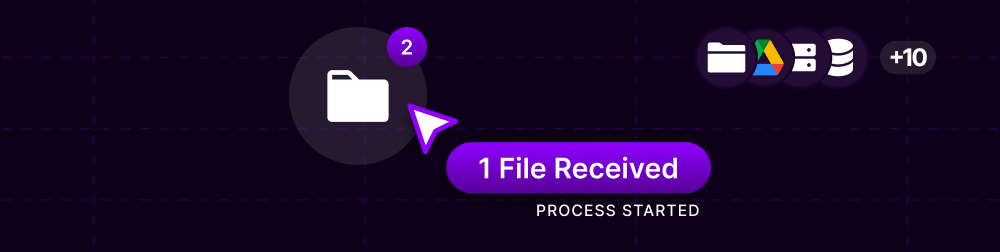 ## File & Folder Triggers
### Monitor Your File System
**Watch for File System Changes:**
```yaml theme={null}
trigger:
type: file_system
paths:
- "/Users/Downloads/*.pdf"
- "/Documents/Invoices/"
- "C:/Data/Input/*.csv"
events:
- file_created
- file_modified
- file_deleted
- folder_created
filters:
- extension: [".pdf", ".xlsx", ".docx"]
- size: "<10MB"
- modified: "last_5_minutes"
```
**Use Cases:**
* Process new downloads automatically
* Backup modified files
* Convert file formats
* Organize incoming documents
* Extract data from new reports
**Monitor Cloud Drives:**
```yaml theme={null}
trigger:
type: google_drive
folder: "/Shared/Invoices"
events: ["file_uploaded"]
share_notification: true
```
```yaml theme={null}
trigger:
type: dropbox
path: "/Team/Reports"
events: ["file_added", "file_modified"]
recursive: true
```
```yaml theme={null}
trigger:
type: onedrive
folder: "/Documents/Contracts"
events: ["new_file"]
file_types: [".pdf", ".docx"]
```
**Watch Remote Servers:**
```yaml theme={null}
trigger:
type: ftp
server: "ftp.company.com"
path: "/incoming/"
poll_interval: 5 # minutes
events:
- new_file
- file_complete # Wait for upload to finish
process:
- download_file
- process_locally
- move_to_processed
- delete_original
```
## File & Folder Triggers
### Monitor Your File System
**Watch for File System Changes:**
```yaml theme={null}
trigger:
type: file_system
paths:
- "/Users/Downloads/*.pdf"
- "/Documents/Invoices/"
- "C:/Data/Input/*.csv"
events:
- file_created
- file_modified
- file_deleted
- folder_created
filters:
- extension: [".pdf", ".xlsx", ".docx"]
- size: "<10MB"
- modified: "last_5_minutes"
```
**Use Cases:**
* Process new downloads automatically
* Backup modified files
* Convert file formats
* Organize incoming documents
* Extract data from new reports
**Monitor Cloud Drives:**
```yaml theme={null}
trigger:
type: google_drive
folder: "/Shared/Invoices"
events: ["file_uploaded"]
share_notification: true
```
```yaml theme={null}
trigger:
type: dropbox
path: "/Team/Reports"
events: ["file_added", "file_modified"]
recursive: true
```
```yaml theme={null}
trigger:
type: onedrive
folder: "/Documents/Contracts"
events: ["new_file"]
file_types: [".pdf", ".docx"]
```
**Watch Remote Servers:**
```yaml theme={null}
trigger:
type: ftp
server: "ftp.company.com"
path: "/incoming/"
poll_interval: 5 # minutes
events:
- new_file
- file_complete # Wait for upload to finish
process:
- download_file
- process_locally
- move_to_processed
- delete_original
```
 ## AI-Powered Triggers
### Intelligent Event Detection
**Trigger Based on Content Understanding:**
```yaml theme={null}
trigger:
type: sentiment_analysis
source: "twitter_mentions"
conditions:
- sentiment: "negative"
- confidence: ">0.8"
- urgency: "high"
actions:
- alert_support_team
- create_priority_ticket
- draft_response
```
**Applications:**
* Crisis management
* Customer satisfaction monitoring
* Brand reputation tracking
* Review response automation
```yaml theme={null}
trigger:
type: pattern_detection
monitor: "sales_data"
patterns:
- anomaly_detection: true
- trend_reversal: true
- threshold_breach: ">$10000"
alert_when:
- unusual_spike
- sudden_drop
- pattern_break
```
**Applications:**
* Fraud detection
* Performance monitoring
* Predictive maintenance
* Market analysis
```yaml theme={null}
trigger:
type: image_recognition
source: "security_camera"
detect:
- object: "package"
- person: "at_door"
- text: "delivery"
- motion: true
confidence_threshold: 0.85
```
**Applications:**
* Security monitoring
* Inventory tracking
* Quality control
* Document processing
**Anticipate Events Before They Happen:**
**Proactive Automation**: Don't just react—predict and prevent. AI triggers can forecast events and launch workflows preemptively.
```yaml theme={null}
trigger:
type: predictive
model: "sales_forecast"
conditions:
- predicted_value: "0.75"
- time_horizon: "next_7_days"
preventive_actions:
- increase_marketing_spend
- alert_sales_team
- adjust_inventory
```
```yaml theme={null}
trigger:
type: risk_assessment
monitor: ["customer_behavior", "payment_history"]
risk_factors:
- churn_probability: ">0.7"
- payment_default_risk: "high"
- usage_decline: ">30%"
mitigation:
- send_retention_offer
- schedule_check_in_call
- adjust_credit_limit
```
```yaml theme={null}
trigger:
type: capacity_planning
metrics: ["cpu_usage", "queue_length", "response_time"]
predictions:
- overload_in: "30_minutes"
- capacity_breach: "imminent"
actions:
- scale_resources
- redistribute_load
- alert_ops_team
```
## Custom Triggers
### Build Your Own Trigger Logic
```javascript theme={null}
// Custom trigger that monitors multiple conditions
class CustomTrigger {
constructor(config) {
this.config = config;
this.lastCheck = null;
}
async shouldTrigger() {
// Check multiple data sources
const metrics = await this.fetchMetrics();
const alerts = await this.checkAlerts();
const time = new Date();
// Complex trigger logic
if (metrics.sales < this.config.threshold &&
alerts.priority === 'high' &&
time.getHours() >= 9 && time.getHours() <= 17) {
return {
trigger: true,
data: {
sales: metrics.sales,
alert: alerts.message,
timestamp: time.toISOString()
}
};
}
return { trigger: false };
}
async fetchMetrics() {
// Fetch from your data source
return await api.get('/metrics/sales');
}
async checkAlerts() {
// Check alert system
return await api.get('/alerts/latest');
}
}
```
**Combine Multiple Trigger Conditions:**
```yaml theme={null}
trigger:
type: composite
require: "all" # or "any", "custom"
conditions:
- time:
after: "09:00"
before: "17:00"
weekdays_only: true
- email:
from: "@important-client.com"
subject_contains: "urgent"
- file:
exists: "/data/ready.flag"
- api:
endpoint: "https://api.service.com/status"
response_contains: "ready"
logic: |
(time AND email) OR
(file AND api) OR
(email.priority == "high")
```
**Sequential Trigger Patterns:**
```yaml theme={null}
trigger_chain:
name: "Order Processing Chain"
step_1:
trigger: email
condition: "subject contains 'new order'"
output: order_id
step_2:
trigger: webhook
condition: "payment.confirmed for {order_id}"
wait_timeout: 3600 # 1 hour
step_3:
trigger: file
condition: "invoice_{order_id}.pdf created"
on_complete:
action: "process_complete_order"
on_timeout:
action: "escalate_to_human"
```
## Trigger Management
### Monitor and Control Your Triggers
**Real-time Trigger Monitoring:**
| Metric | Description | Current |
| --------------------- | -------------------------- | ------- |
| **Active Triggers** | Currently monitoring | 47 |
| **Fired Today** | Triggers activated | 1,234 |
| **Success Rate** | Successful workflow starts | 98.5% |
| **Avg Response Time** | Trigger to action | 230ms |
| **Failed Triggers** | Errors in last 24h | 12 |
**Features:**
* Live trigger status
* Execution history
* Performance metrics
* Error logs
* Testing interface
**Advanced Filtering and Rules:**
```yaml theme={null}
global_conditions:
business_hours:
timezone: "America/New_York"
days: ["Mon", "Tue", "Wed", "Thu", "Fri"]
hours: "09:00-17:00"
rate_limiting:
max_per_minute: 10
max_per_hour: 100
max_per_day: 1000
error_handling:
max_retries: 3
retry_delay: 60 # seconds
exponential_backoff: true
deduplication:
enabled: true
window: 300 # seconds
key: "${trigger.id}"
```
**Test Before Deploying:**
Test triggers without executing workflows
Use test data to verify trigger logic
See exactly what data triggers pass to workflows
Ensure triggers can handle expected load
## Advanced Trigger Features
**Smart Execution Order:**
* High-priority triggers jump the queue
* Critical alerts processed first
* Business logic for prioritization
* Fair scheduling for normal triggers
**Organize Related Triggers:**
* Group by department or function
* Bulk enable/disable
* Shared configuration
* Cascading triggers
**Dynamic Trigger Logic:**
* If-then-else conditions
* Multiple condition paths
* Variable-based triggers
* Context-aware activation
**Reusable Trigger Patterns:**
* Save common trigger configs
* Share across workflows
* Version control
* Team collaboration
## Trigger Analytics
### Understand Your Automation Patterns
**Trigger Performance Data:**
| Trigger Type | Fires/Day | Success Rate | Avg Response |
| ---------------- | --------- | ------------ | ------------ |
| **Time-based** | 450 | 99.8% | 50ms |
| **Email** | 280 | 97.5% | 320ms |
| **Webhook** | 620 | 98.2% | 180ms |
| **File** | 150 | 99.1% | 450ms |
| **AI Detection** | 85 | 95.3% | 1200ms |
**Improve Trigger Efficiency:**
Analyze when and why triggers fire most frequently
Refine conditions to avoid unnecessary triggers
Combine related triggers for efficiency
Adjust schedules based on actual usage patterns
## Getting Started with Triggers
Select the appropriate trigger for your automation needs
Set up when the trigger should activate
Define what information passes to the workflow
Use test mode to verify trigger behavior
Activate trigger and track performance
**The Power of Triggers**: Every trigger you configure is another step toward complete automation. Start with simple time-based triggers, then gradually add event-based and AI-powered triggers as your automation sophistication grows.
Browse pre-built triggers
Connect triggers to workflows
Trigger optimization guide
***
**Triggers: Where automation becomes autonomous.**
**Set it once. Runs forever. Never miss a moment.**
## AI-Powered Triggers
### Intelligent Event Detection
**Trigger Based on Content Understanding:**
```yaml theme={null}
trigger:
type: sentiment_analysis
source: "twitter_mentions"
conditions:
- sentiment: "negative"
- confidence: ">0.8"
- urgency: "high"
actions:
- alert_support_team
- create_priority_ticket
- draft_response
```
**Applications:**
* Crisis management
* Customer satisfaction monitoring
* Brand reputation tracking
* Review response automation
```yaml theme={null}
trigger:
type: pattern_detection
monitor: "sales_data"
patterns:
- anomaly_detection: true
- trend_reversal: true
- threshold_breach: ">$10000"
alert_when:
- unusual_spike
- sudden_drop
- pattern_break
```
**Applications:**
* Fraud detection
* Performance monitoring
* Predictive maintenance
* Market analysis
```yaml theme={null}
trigger:
type: image_recognition
source: "security_camera"
detect:
- object: "package"
- person: "at_door"
- text: "delivery"
- motion: true
confidence_threshold: 0.85
```
**Applications:**
* Security monitoring
* Inventory tracking
* Quality control
* Document processing
**Anticipate Events Before They Happen:**
**Proactive Automation**: Don't just react—predict and prevent. AI triggers can forecast events and launch workflows preemptively.
```yaml theme={null}
trigger:
type: predictive
model: "sales_forecast"
conditions:
- predicted_value: "0.75"
- time_horizon: "next_7_days"
preventive_actions:
- increase_marketing_spend
- alert_sales_team
- adjust_inventory
```
```yaml theme={null}
trigger:
type: risk_assessment
monitor: ["customer_behavior", "payment_history"]
risk_factors:
- churn_probability: ">0.7"
- payment_default_risk: "high"
- usage_decline: ">30%"
mitigation:
- send_retention_offer
- schedule_check_in_call
- adjust_credit_limit
```
```yaml theme={null}
trigger:
type: capacity_planning
metrics: ["cpu_usage", "queue_length", "response_time"]
predictions:
- overload_in: "30_minutes"
- capacity_breach: "imminent"
actions:
- scale_resources
- redistribute_load
- alert_ops_team
```
## Custom Triggers
### Build Your Own Trigger Logic
```javascript theme={null}
// Custom trigger that monitors multiple conditions
class CustomTrigger {
constructor(config) {
this.config = config;
this.lastCheck = null;
}
async shouldTrigger() {
// Check multiple data sources
const metrics = await this.fetchMetrics();
const alerts = await this.checkAlerts();
const time = new Date();
// Complex trigger logic
if (metrics.sales < this.config.threshold &&
alerts.priority === 'high' &&
time.getHours() >= 9 && time.getHours() <= 17) {
return {
trigger: true,
data: {
sales: metrics.sales,
alert: alerts.message,
timestamp: time.toISOString()
}
};
}
return { trigger: false };
}
async fetchMetrics() {
// Fetch from your data source
return await api.get('/metrics/sales');
}
async checkAlerts() {
// Check alert system
return await api.get('/alerts/latest');
}
}
```
**Combine Multiple Trigger Conditions:**
```yaml theme={null}
trigger:
type: composite
require: "all" # or "any", "custom"
conditions:
- time:
after: "09:00"
before: "17:00"
weekdays_only: true
- email:
from: "@important-client.com"
subject_contains: "urgent"
- file:
exists: "/data/ready.flag"
- api:
endpoint: "https://api.service.com/status"
response_contains: "ready"
logic: |
(time AND email) OR
(file AND api) OR
(email.priority == "high")
```
**Sequential Trigger Patterns:**
```yaml theme={null}
trigger_chain:
name: "Order Processing Chain"
step_1:
trigger: email
condition: "subject contains 'new order'"
output: order_id
step_2:
trigger: webhook
condition: "payment.confirmed for {order_id}"
wait_timeout: 3600 # 1 hour
step_3:
trigger: file
condition: "invoice_{order_id}.pdf created"
on_complete:
action: "process_complete_order"
on_timeout:
action: "escalate_to_human"
```
## Trigger Management
### Monitor and Control Your Triggers
**Real-time Trigger Monitoring:**
| Metric | Description | Current |
| --------------------- | -------------------------- | ------- |
| **Active Triggers** | Currently monitoring | 47 |
| **Fired Today** | Triggers activated | 1,234 |
| **Success Rate** | Successful workflow starts | 98.5% |
| **Avg Response Time** | Trigger to action | 230ms |
| **Failed Triggers** | Errors in last 24h | 12 |
**Features:**
* Live trigger status
* Execution history
* Performance metrics
* Error logs
* Testing interface
**Advanced Filtering and Rules:**
```yaml theme={null}
global_conditions:
business_hours:
timezone: "America/New_York"
days: ["Mon", "Tue", "Wed", "Thu", "Fri"]
hours: "09:00-17:00"
rate_limiting:
max_per_minute: 10
max_per_hour: 100
max_per_day: 1000
error_handling:
max_retries: 3
retry_delay: 60 # seconds
exponential_backoff: true
deduplication:
enabled: true
window: 300 # seconds
key: "${trigger.id}"
```
**Test Before Deploying:**
Test triggers without executing workflows
Use test data to verify trigger logic
See exactly what data triggers pass to workflows
Ensure triggers can handle expected load
## Advanced Trigger Features
**Smart Execution Order:**
* High-priority triggers jump the queue
* Critical alerts processed first
* Business logic for prioritization
* Fair scheduling for normal triggers
**Organize Related Triggers:**
* Group by department or function
* Bulk enable/disable
* Shared configuration
* Cascading triggers
**Dynamic Trigger Logic:**
* If-then-else conditions
* Multiple condition paths
* Variable-based triggers
* Context-aware activation
**Reusable Trigger Patterns:**
* Save common trigger configs
* Share across workflows
* Version control
* Team collaboration
## Trigger Analytics
### Understand Your Automation Patterns
**Trigger Performance Data:**
| Trigger Type | Fires/Day | Success Rate | Avg Response |
| ---------------- | --------- | ------------ | ------------ |
| **Time-based** | 450 | 99.8% | 50ms |
| **Email** | 280 | 97.5% | 320ms |
| **Webhook** | 620 | 98.2% | 180ms |
| **File** | 150 | 99.1% | 450ms |
| **AI Detection** | 85 | 95.3% | 1200ms |
**Improve Trigger Efficiency:**
Analyze when and why triggers fire most frequently
Refine conditions to avoid unnecessary triggers
Combine related triggers for efficiency
Adjust schedules based on actual usage patterns
## Getting Started with Triggers
Select the appropriate trigger for your automation needs
Set up when the trigger should activate
Define what information passes to the workflow
Use test mode to verify trigger behavior
Activate trigger and track performance
**The Power of Triggers**: Every trigger you configure is another step toward complete automation. Start with simple time-based triggers, then gradually add event-based and AI-powered triggers as your automation sophistication grows.
Browse pre-built triggers
Connect triggers to workflows
Trigger optimization guide
***
**Triggers: Where automation becomes autonomous.**
**Set it once. Runs forever. Never miss a moment.**